
How to sort and filter your quotes in the new BoltWise interface.
Manage Columns
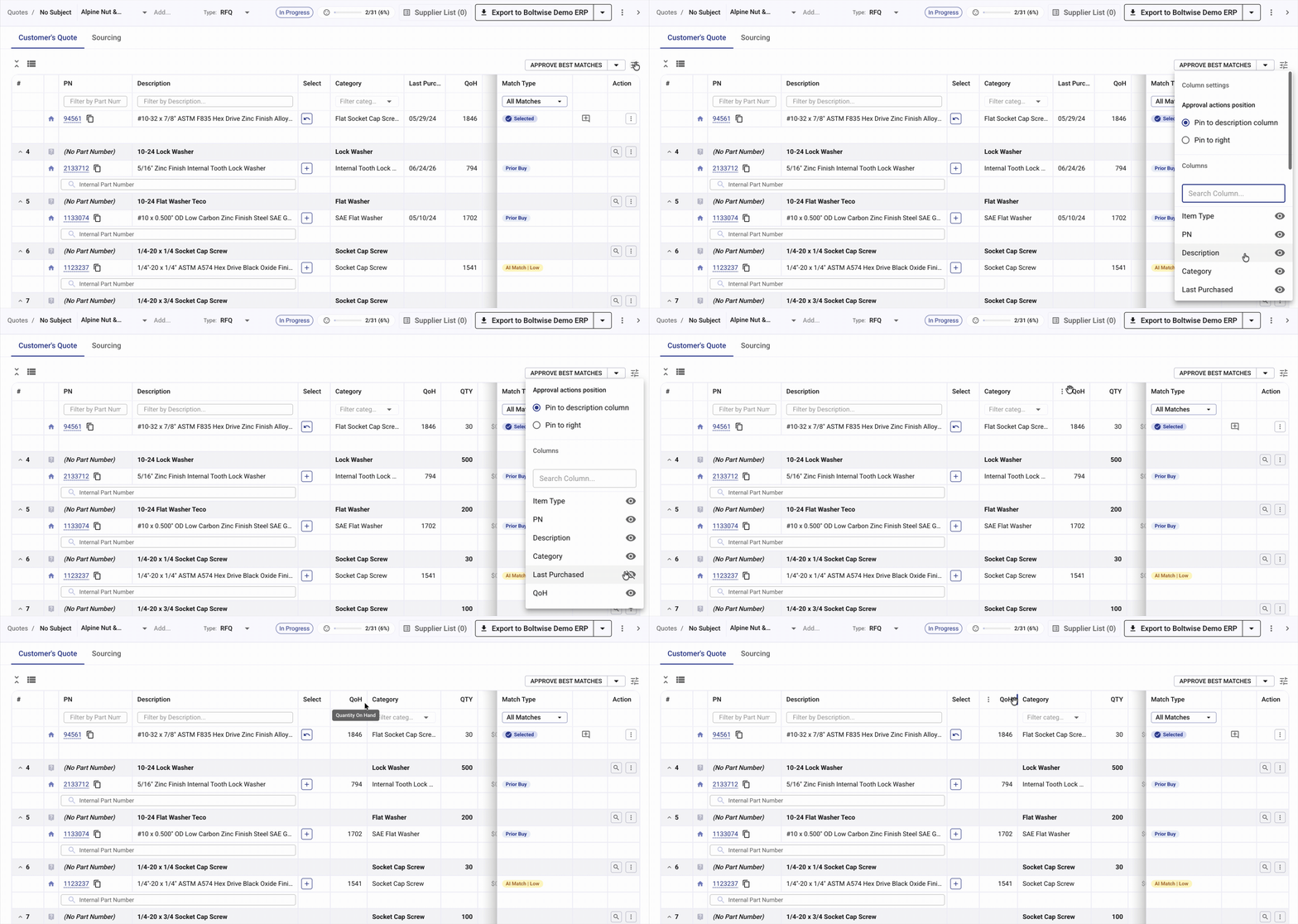
-
Hide Columns - the Manage Columns button to the right of Approve Best Matches pulls up a menu from from which you can select which columns you'd like to see, and which to hide. An eye icon means the column will be shown, an eye icon with a strike through it will be hidden. You can show and hide columns just by clicking on the eye icon next to the column name in the Manage columns menu.
- Adjust Column Width - click and drag the column adjuster to make a column wider or narrower as needed
- Rearrange Columns - drag and drop columns into your preferred order.
- Your settings - BoltWise will remember which columns you've hidden and adjusted. The next time you open a quote, BoltWise will automatically hidden columns you hide previously. Want to see those columns? They can always be unhidden.
Filter Quote with part details

- Filter by part number or description by typing into the PN or Description fields located at the top of your quote
- Filter by part category by selecting the Category drop-down menu and selecting the desired part category
- Sort any column ascending or descending with the arrows in the column header. Want to reset the order? Click the sort a third time.
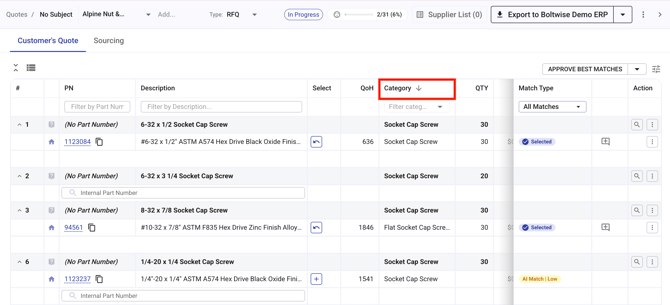
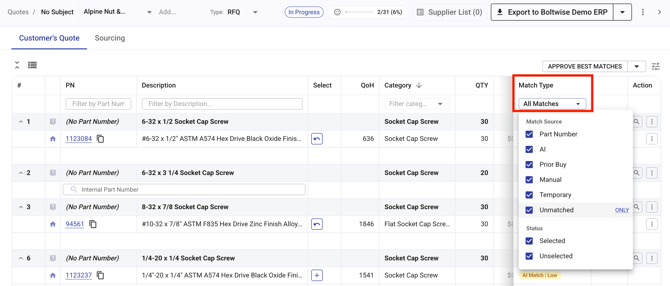
Filter Quote by Match Type - click on the Match Type drop-down at the top of the quote. Select the match type(s) you'd like to see to filter your quote to see only parts which meet the following criteria:
-
Part Number Match: indicates we recognized the part number as a direct part number match, a customer cross-reference, or a vendor cross-reference.
- AI Match: if there is no PN match, the AI model will find potential matches in your catalog.
- Prior Buy: indicates that this part has been sold to this customer before.
- Selected: only see the parts you've already matched
- Unmatched: only see the parts you haven't matched yet