---
title: PO Automation
description: Running PO Automation with BoltWise
---
[Skip to content](https://help.getboltwise.com/en/boltwise-helpcenter/po-automation#main-content)
English
Show submenu for translations
[](https://app.getboltwise.com)
Open main navigation
Close main navigation
- English
Show submenu for translations
- [Contact us](mailto:support@getboltwise.com)
[Contact us](mailto:support@getboltwise.com)
How can we help you?
- There are no suggestions because the search field is empty.
1. [BoltWise Help Center](https://help.getboltwise.com/en/boltwise-helpcenter?hsLang=en)
2. [Getting started](https://help.getboltwise.com/en/boltwise-helpcenter/getting-started?hsLang=en)
# PO Automation
You can run PO Automation in BoltWise:
Create a PO in BoltWise from the BoltWise Dashboard.
1. To start a new PO, click the ***Create Quote*** button in the top left of your browser window. From here you can generate both RFQs and POs.
2. The ***Create a quote*** tool will slide-out from the right-hand side of your browser. Drag and drop your file (like a pdf) into the uploader.
\- OR -
Click into the uploader and a window with your files will open. When you've selected the correct file, click the ***Open ***button to pull your file into the BoltWise quote you're working on.
3. Select the appropriate PO customer from ***Quote Details --\> Customer***
When you export your quote to your ERP, we will push it to their account within your system.
4. (Optional) Give your PO a name to make it easier to track ***Quote Details --\> Quote Name***
5. Click the blue ***Create ***button in the top right of the quote tool to automatically generate your PO.
6. BoltWise will recognize that your pdf includes a PO number and will add a PO flag and pull PO details: buyer name, the contact, ship to address, and the PO number.
Working on your PO
1. Select your part matches.
1. **Confirm part number matches:** If BoltWise recognizes your part number or a pre-mapped cross-reference (customer alternative part or vendor part number), we will automatically pull back the appropriate part from your catalog. To approve a part number match, click the blue check at the end of the line item with a **Part Match** badge. After approving a part number match, you will be given the option to approve all identified part number matches in bulk.
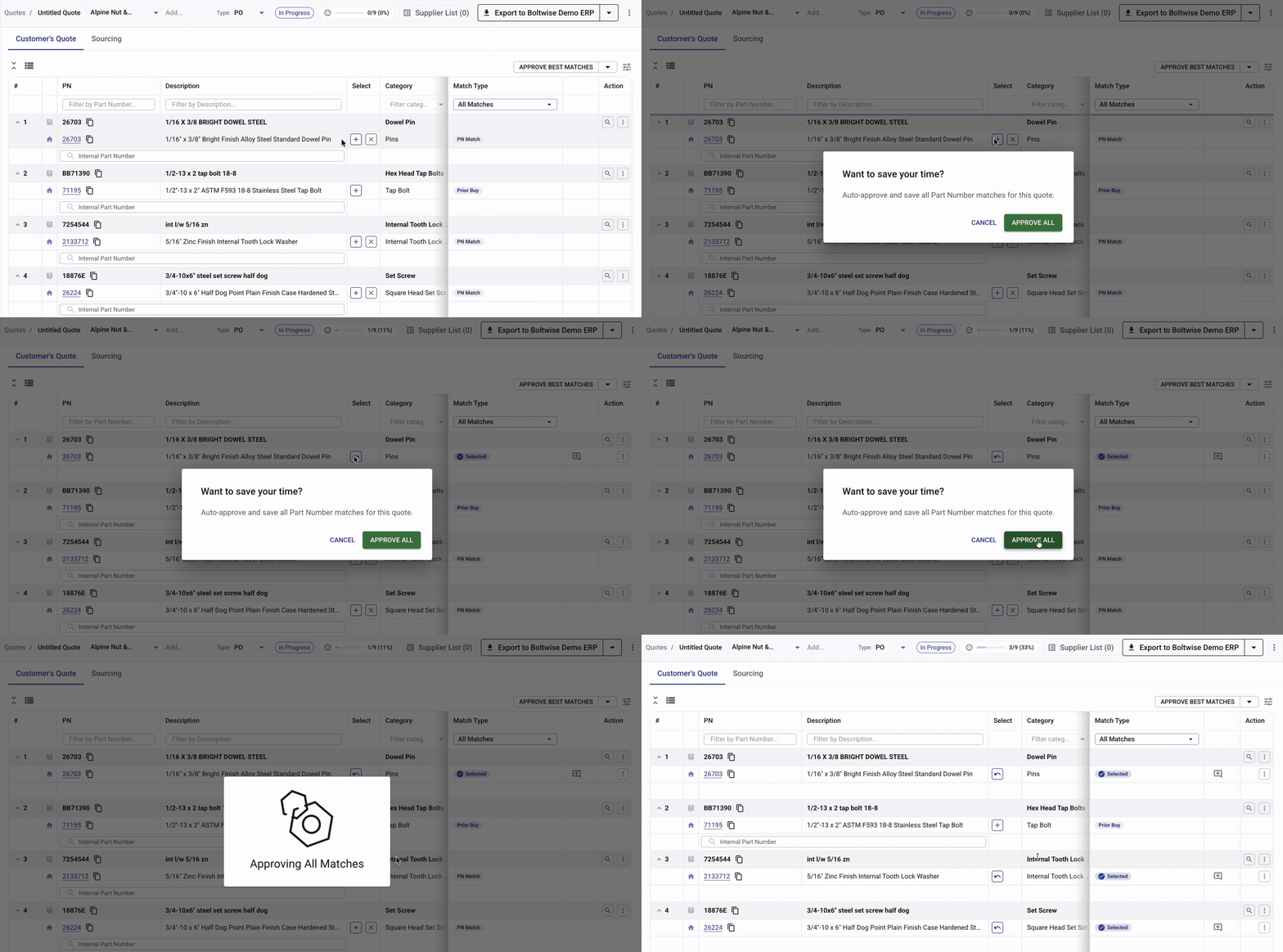
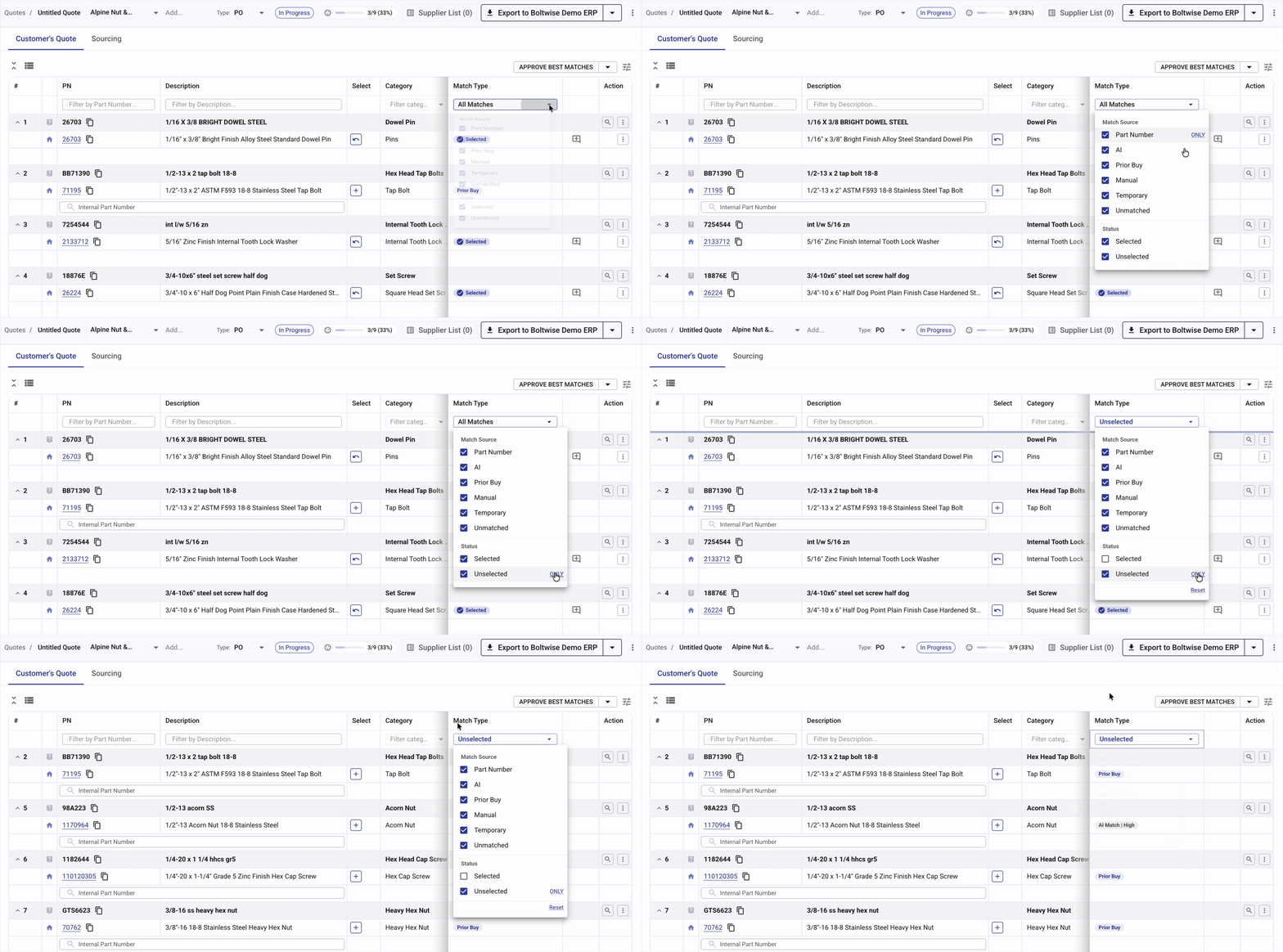
2. **Confirming remaining parts:** For items in the PO without a part number match, BoltWise will surface potential matches from your catalog using our AI search. You can filter for unmatched parts by using the **Match Type** drop-down to filter. To confirm matches from your catalog, click the blue plus to the right of the line item.
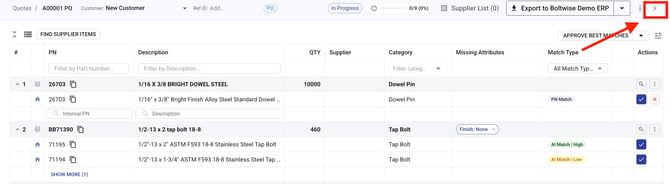
2. Click the **\> **icon in the top left of your browser window to see all available PO Details. The file you uploaded will appear here as well as any buyer details included in the file: the buyer name, the contact, ship to address, the PO number, and total price for the order.
3. When you're done working on the PO, click the **Export** button at the top of the page. You can export to a pdf, excel, or your ERP (if configured).
- [FAQs](https://help.getboltwise.com/en/boltwise-helpcenter/faqs?hsLang=en)
- [Getting started](https://help.getboltwise.com/en/boltwise-helpcenter/getting-started?hsLang=en)
- [Quoting](https://help.getboltwise.com/en/boltwise-helpcenter/quoting?hsLang=en)
[](https://app.getboltwise.com)
[mailto:support@getboltwise.com](mailto:support@getboltwise.com)
Copyright © 2026, BoltWise
```json
{
"@context" : "https://schema.org",
"@type" : "VideoObject",
"contentUrl" : "https://242544765.fs1.hubspotusercontent-na2.net/hubfs/242544765/video_assets/332611684054/inherited/web_optimized.mp4",
"dateModified" : "2026-04-14T17:39:49.586Z",
"duration" : "PT1M57.423S",
"height" : 1080,
"name" : "PO Automation_BoltWise",
"thumbnailUrl" : "https://242544765.fs1.hubspotusercontent-na2.net/hubfs/242544765/Knowledge%20Base/Knowledge%20Base%20Videos/PO%20Automation_BoltWise.mp4/medium.jpg",
"uploadDate" : "2026-04-08T17:55:50.671Z",
"width" : 1620
}
```