---
title: Selecting Parts
description: Selecting Parts
---
[Skip to content](https://help.getboltwise.com/en/boltwise-helpcenter/selecting-parts#main-content)
English
Show submenu for translations
[](https://app.getboltwise.com)
Open main navigation
Close main navigation
- English
Show submenu for translations
- [Contact us](mailto:support@getboltwise.com)
[Contact us](mailto:support@getboltwise.com)
How can we help you?
- There are no suggestions because the search field is empty.
1. [BoltWise Help Center](https://help.getboltwise.com/en/boltwise-helpcenter?hsLang=en)
2. [Quoting](https://help.getboltwise.com/en/boltwise-helpcenter/quoting?hsLang=en)
# Selecting Parts
**How to Select a Part**
When working on a quote in BoltWise, you'll select a part form your catalog for each part your customer requested.
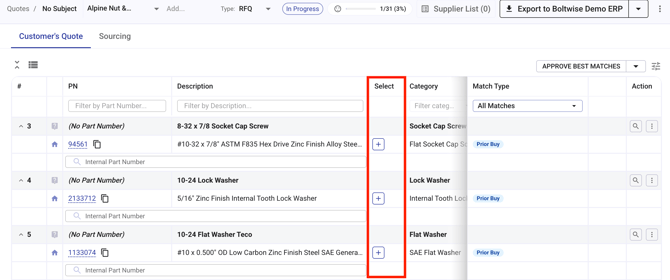
- Each grey line is a part from your customer's request. The white lines below, are potential part matches.
- A blue home icon next to a part means that it comes from your internal catalog.
- To select the part to include in your quote, click the blue plus sign next to the internal part description you want to select.
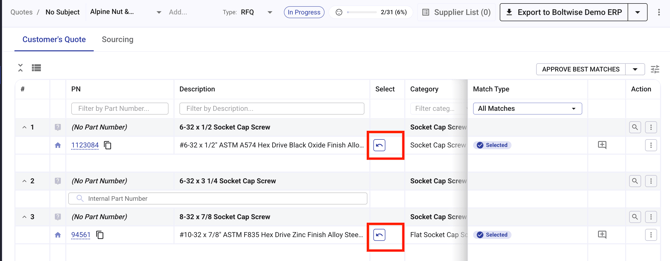
- Changed your mind? Click the ***Undo Selection*** reverse arrow button to unselect a catalog part, and return to the initial list of suggested catalog parts.
- Not seeing a good option? Click the Spyglass 🔍 icon to see all possible matches for a requested part.
- Not seeing your select button next to descriptions? You can move it following [these instructions](https://help.getboltwise.com/en/boltwise-helpcenter/can-i-reposition-the-part-approval-button?hsLang=en).
**Finding the Best Part Matches**
BoltWise helps you find the right parts with three suggested match types.
- **PN Match **your customer's request included a part number which has already been mapped to your internal part number, or the vendor part number. You can even bulk approve PN matches.
- **Prior Buy **indicates the quote customer has bought this part before.
- **AI Match** if there is no PN match, the AI model will find recommended matches in your catalog for you based on known attributes. AI matches have a confidence score of Unsure, Low, Moderate, and High.
**Bulk Matching Parts**
You can approve the following matches in bulk from the **APPROVE BEST MATCHES **dropdown in the top right of your screen:
- **Approve High Confidence Matches** approve all AI matches with a High Confidence score.
- **Approve Moderate Confidence Matches** approve all AI matches with a Moderate Confidence score.
- **Approve Low Confidence Matches** approve all AI matches with a Low confidence score.
- **Approve Part Number Matches Only** approve all part number matches.
**Exporting a Quote**
When you're done working on a quote, click the **EXPORT** button in the top right to export your quote to your ERP if the integration is live, or you can choose to export to an Excel file or a PDF.
When you're quote has been exported, the **In Progress **button will change to **With Customer**. If you exported to your ERP, a reference ID will be created when you export. You can see the reference ID with the other quote information at the top of the page.
- [FAQs](https://help.getboltwise.com/en/boltwise-helpcenter/faqs?hsLang=en)
- [Getting started](https://help.getboltwise.com/en/boltwise-helpcenter/getting-started?hsLang=en)
- [Quoting](https://help.getboltwise.com/en/boltwise-helpcenter/quoting?hsLang=en)
[](https://app.getboltwise.com)
[mailto:support@getboltwise.com](mailto:support@getboltwise.com)
Copyright © 2026, BoltWise