---
title: Uploading Excel Quotes
description: Uploading Excel Quotes
---
[Skip to content](https://help.getboltwise.com/en/boltwise-helpcenter/upload-excel-quotes#main-content)
English
Show submenu for translations
[](https://app.getboltwise.com)
Open main navigation
Close main navigation
- English
Show submenu for translations
- [Contact us](mailto:support@getboltwise.com)
[Contact us](mailto:support@getboltwise.com)
How can we help you?
- There are no suggestions because the search field is empty.
1. [BoltWise Help Center](https://help.getboltwise.com/en/boltwise-helpcenter?hsLang=en)
2. [Getting started](https://help.getboltwise.com/en/boltwise-helpcenter/getting-started?hsLang=en)
# Uploading Excel Quotes
You can upload Excel files as Quotes in BoltWise:
To create a quote from an Excel file:
1. Click ***Create Quote*** button in the top left of your browser window 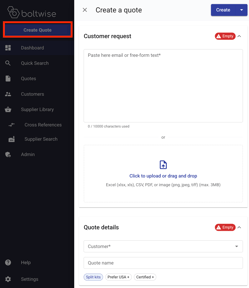
2. The ***Create a Quote*** tool will slide-out from the right-hand side of your browser
3. Drag and drop your Excel file into the uploader.
\- OR -
Click into the uploader and a window with your files will open. When you've selected the correct file, click the ***Open ***button to pull your file into the BoltWise quote you're working on.
4. Select the sheet to use and click the **Next **button. This is the sheet in your Excel file with the relevant information on the parts that are being requested.
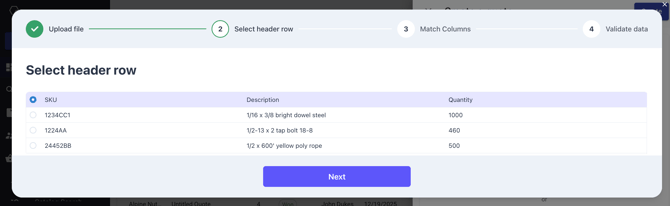
5. Select your header row and click the **Next **button. The header row is the row containing descriptors like "Part Number" "Part Description" and "Quantity." Selecting the header row tells BoltWise what kind of information is contained in the following rows.
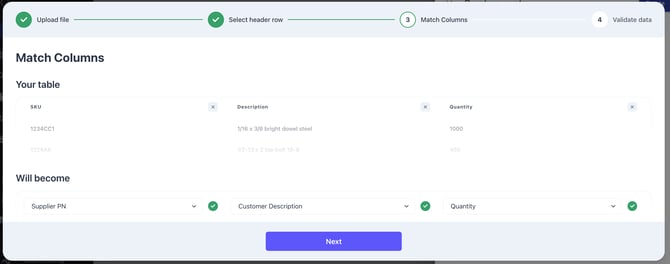
6. Match Columns: confirm that the information in your sheet is pulling into the right labels. For example, is the Customer Description column properly matched to your Customer's Descriptions from the Excel file? BoltWise is able to recognize some common columns from the context in your file, but you may still have to match some columns.
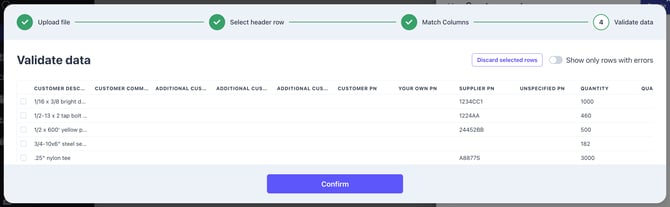
7. Validate Data: review example lines from your Excel file to make sure columns were matched correctly.
8. Select the appropriate customer from ***Quote Details --\> Customer***
When you export your quote to your ERP, we will push it to their account within your system.
9. (Optional) Give your quote a name to make it easier to track ***Quote Details --\> Quote Name***
10. (Optional) If your customer prefers domestic parts, click the ***Prioritize USA parts+ ***button. This will prioritize parts with certifications for your results.
11. (Optional) If your customer wants parts which need certifications, click the ***Needs certification+ ***button. This tells BoltWise to prioritize parts cataloged as needing certification to sell.
12. (Optional) Click the ***Split Kits ***button before creating your quote and BoltWise will auto-detect kits and assemblies, and break them out into individually itemized lines.
13. Click the blue ***Create ***button in the top right of the quote tool to automatically generate your quote.
- [FAQs](https://help.getboltwise.com/en/boltwise-helpcenter/faqs?hsLang=en)
- [Getting started](https://help.getboltwise.com/en/boltwise-helpcenter/getting-started?hsLang=en)
- [Quoting](https://help.getboltwise.com/en/boltwise-helpcenter/quoting?hsLang=en)
[](https://app.getboltwise.com)
[mailto:support@getboltwise.com](mailto:support@getboltwise.com)
Copyright © 2026, BoltWise
```json
{
"@context" : "https://schema.org",
"@type" : "VideoObject",
"contentUrl" : "https://242544765.fs1.hubspotusercontent-na2.net/hubfs/242544765/video_assets/332611684056/inherited/web_optimized.mp4",
"dateModified" : "2026-04-14T17:39:50.478Z",
"duration" : "PT4M36.629S",
"height" : 1080,
"name" : "Uploading Excel Files",
"thumbnailUrl" : "https://242544765.fs1.hubspotusercontent-na2.net/hubfs/242544765/Knowledge%20Base/Knowledge%20Base%20Videos/Uploading%20Excel%20Files.mp4/medium.jpg",
"uploadDate" : "2026-04-08T17:55:51.449Z",
"width" : 1920
}
```